Basic Table Operations

Now that the basic data types are learned about tables, we can now start to actually create, remove and modify tables.
Getting Started

First, on your terminal connect to your mycli / mysql CLI.
And then we need to have a database which we'll use. Let's drop our test database if it exists and then create it:
We can now list all the databases to see that it was correctly created:
Then finally, let's use the database that we just created, called testdb:
Now as the first thing, we can list the tables in the database with this command:
It should give you zero tables as we have not yet created any. Great! Let's now have a look at the syntax of how we can create tables.
Creating Tables

Fortunately, the syntax for creating tables in MySQL is very simple! It looks like this:
CREATE TABLE tablename (columnName dataType, column2Name dataType2);
Info
I've split this command into multiple lines for better readability, but we could also write this in single line. For commands, you can use as many lines as you want and the only thing that you will need to remember is to use the semicolon at the end to tell that the command is now finished.
So we start with the keywords CREATE TABLE and then after that the name of the table and all the columns for the table inside brackets. Inside brackets you specify each column name and it's datatype followed with a comma for separation. And as normally, you stop the command with a semicolon.
Info
Psst.. If you are using mycli, you need to enable multi-line mode for you to type commands into multiples lines. You can do this by pressing F3. Read more from here.
Creating our First Table
Let's start by creating our first table! Let's create a simple table that contains very basic data of a car by writing this into our mysql CLI:
Info
Note that you should use plurals when creating tables as our table can always contain multiple records inside of a given entity. So not not create a table called person or car but create a table called persons or cars.
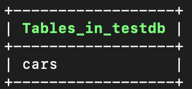
This now created a table called cars for us. We can verify that the table is actually there by running the SHOW TABLES command:
Which should output something like this:
Viewing Table Structure

To view the structure of the table, we can use the command DESCRIBE like this:
This outputs the table for us, which should look something like this:
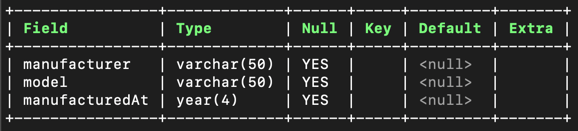
And just like that our first table is there where we could add data. Wasn't that simple? :)
Do not that synonym for the DESCRIBE command is SHOW COLUMNS FROM which can also be used in place of DESCRIBE like this: SHOW COLUMNS FROM cars.
Altering Tables

It is possible to also change the table once it has been created. We can use the command ALTER TABLE for this. With this command we can for example add new columns, remove columns and rename columns.
Altering Tables: Adding new Columns
Let's first add a couple new columns to our table cars by running this command:
This adds couple new columns for our table, insertedAt is a timestamp when a record was added in our table and country would hold the country where the car was manufactured at. We can use the DESCRIBE command again to view how the table now looks like:
Which outputs:

Altering Tables: Renaming Columns
Columns can be renamed by replacing the ADD COLUMN identifier with CHANGE. Let's change our column country into countryManufacturedAt by using this command:
Then just run the command DESCRIBE cars again to view how the table looks like now.
Altering Tables: Removing Columns
To remove column(s) from a table, we need to replace the identifier ADD COLUMN with DROP COLUMN. To drop the column manufacturedAt, we can use this command:
Again, run the command DESCRIBE cars again to view how the table now looks like.
Dropping (Removing) Tables

The last basic thing with tables is to remove / drop them. In the SQL world we usually talk about dropping something, which refers to removing or destroying it.
To drop (remove) the table cars, we can run this command:
Then after that we can verify that the table no longer exists by running the SHOW TABLES command again:
Removing the Database

Now that this database is no longer required, feel free to remove it:
Conclusion

In this chapter we learned to:
- List all tables in the database (command
SHOW TABLES) - Create tables (command
CREATE TABLE) - Describe table structure (command
DESCRIBE tableName) - Alter table columns by adding, renaming and dropping columns (command
ALTER TABLE) - Drop a table (command
DROP TABLE tableName)
Learn More
